Ever tried to capture the perfect selfie or group shot only to find yourself awkwardly sprinting into the frame? Setting up a timer on your iPhone camera can save you from those comical dashes and create picture-perfect moments with ease. It’s like having your own personal photographer—minus the hefty fees and questionable fashion advice.
Understanding The iPhone Camera Timer
The iPhone camera timer simplifies photo-taking, enabling users to capture moments effortlessly. This feature allows for optimal framing and timing, enhancing the photography experience.
What Is The Camera Timer?
The camera timer is a built-in feature on iPhones that allows users to set a delay before the camera takes a photo. This delay can typically be set for three or ten seconds. Activating the timer reduces the need for a photographer and provides the opportunity for users to join a group shot or prepare for a selfie. Using this function, individuals can achieve perfectly timed images with less stress.
Why Use A Timer For Photos?
Using a timer for photos offers several benefits. It creates ample time for positioning, ensuring everyone fits in the frame. Additionally, this feature eliminates blurriness caused by sudden movements, resulting in clearer images. It also promotes creative photography by allowing users to set unique poses or angles. Embracing the timer option enhances both solo and group photos, making it an essential tool for capturing memories.
Step-By-Step Guide On How To Set Up A Timer On iPhone Camera
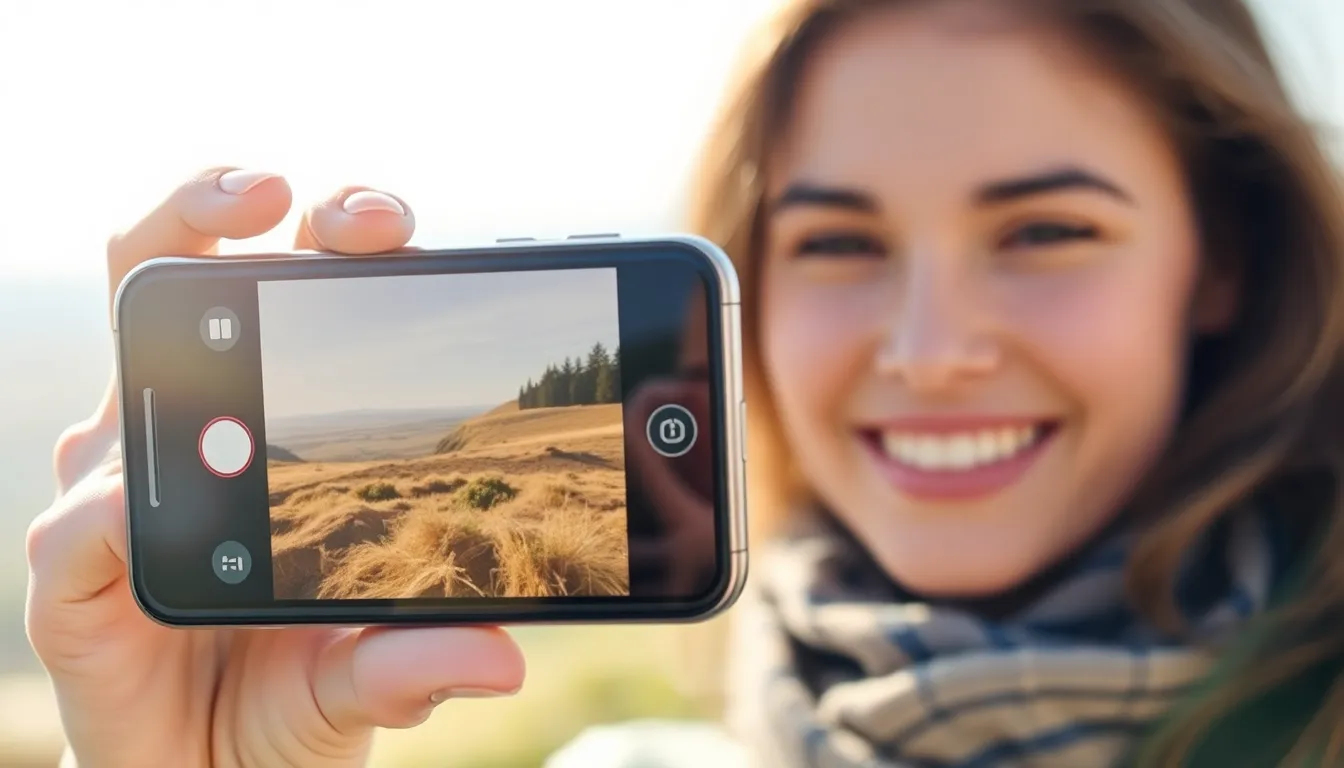
Setting up a timer on the iPhone camera is straightforward. Follow these steps for easy access and optimal photo-taking.
Accessing The Camera App
To start, unlock the iPhone. Next, locate the Camera app on the home screen or in the App Library. Tap to open it. The camera interface displays a variety of options for capturing images, making it user-friendly and accessible.
Selecting The Timer Option
Once in the camera view, look for an icon that resembles a clock. This timer icon typically appears at the top of the screen. Tap on it to reveal timer options. Users will see choices for three seconds and ten seconds. Selecting one allows the user to prepare for the perfect shot.
Choosing The Timer Duration
After accessing the timer options, choose between a three-second or ten-second delay. The three-second setting is ideal for quick selfies, while the ten-second option offers more time for positioning. Confirm the choice, then position the camera. The timer automatically counts down, ensuring users can grab their ideal pose or join a group before the photo captures.
Tips For Using The Timer Effectively
Using the timer feature on an iPhone camera can make photo sessions smoother and more enjoyable. Here are some tips to enhance your experience.
Positioning The Camera
Position the camera at eye level for the most flattering angle. Use a stable surface or a tripod to prevent shaking. Choosing a well-lit area improves photo quality and avoids dark images. Ensure the background complements the subject to increase visual appeal. Refining the frame helps highlight key elements in the shot. Don’t forget to check the viewfinder before starting the timer to ensure everyone fits in the picture.
Practicing Your Pose
Practicing poses before the timer starts can lead to better results. Stand confidently for more dynamic photos. Experiment with different angles for variety. Smiling naturally adds warmth to the shot. Consider perspectives like candid moments to capture genuine emotions. Coordinating with others in group shots creates fun interactions, making the photos more memorable. Taking a few test shots can help refine the final pose as well.
Troubleshooting Common Issues
Users may encounter issues while using the timer feature on their iPhone camera. Identifying and resolving these problems can enhance the photo-taking experience.
Timer Not Working
First, check the selection of the timer option. Users must ensure they choose either the three-second or ten-second delay before taking a photo. If the timer appears stuck, restarting the Camera app can often solve this issue. Additionally, closing all other background apps may free up resources, allowing the timer to function properly. It’s essential to keep the iPhone updated as software updates can fix bugs that affect camera features. If problems persist, performing a soft reset by holding down the power and volume buttons may help restore normal functionality.
Camera App Glitches
Sometimes, glitches in the Camera app can disrupt the timer feature. Users should first check if the device is running low on storage, as inadequate space can lead to performance issues. Restarting the iPhone can clear minor glitches, often restoring normal operation. If the app continues to misbehave, deleting and reinstalling can refresh its settings. Users may also find it helpful to reset the device settings by going to Settings and selecting ‘Reset All Settings,’ which can resolve various app-related issues without deleting personal data.
Using the timer feature on an iPhone camera transforms the way users capture moments. It not only simplifies the process of taking selfies and group photos but also enhances the overall experience by allowing for better positioning and creativity. With just a few taps, anyone can set up the timer and prepare for the perfect shot.
By following the tips provided, users can maximize the potential of this feature and create stunning images without the need for a photographer. With the right approach, the timer becomes an invaluable tool for anyone looking to capture memories effortlessly. Embracing this feature ensures that every moment is beautifully preserved for years to come.